
Canva built its reputation on making design accessible to people who never touched Photoshop or Illustrator, and in 2026 that mission has only gotten bigger: the company now owns Affinity, has folded generative AI into nearly every corner of its editor, and pitches Canva Pro as a legitimate alternative to a full professional creative suite rather than just a template tool for social media graphics. We spent several weeks putting Canva Pro through real design work — brand kits, presentations, video, and AI-assisted image generation — to see how well that pitch holds up.
Quick Verdict
| Overall Score | 4.4 / 5 |
| Best For | Marketers, solo entrepreneurs, content creators, and non-designers who need fast, professional-looking output |
| Starting Price | Free plan available; Pro runs roughly $13–15/month (around $120/year billed annually) |
| Standout Feature | Magic Studio AI tools combined with a massive template and asset library |
| Main Drawback | AI credits are limited and heavy generative use can exhaust the monthly pool quickly |
What Canva Is in 2026
Canva’s core editor is still the drag-and-drop, browser-based design tool that made it famous: pick a template, swap in your own text, images, and colors, and export in whatever format the job needs, from a social media post to a multi-page PDF report. What has expanded dramatically is everything around that editor. Canva now covers presentations, video editing, whiteboarding, basic website building, print-on-demand products, and — since its acquisition of the Affinity team — a genuinely professional-grade design suite sitting alongside the beginner-friendly core product.
The strategic logic is clear: Canva wants to be the only design subscription a small business or solo creator ever needs, covering everything from a quick Instagram graphic to a print-ready brochure, without forcing the user to learn a more complex tool for the harder jobs.
The Editor and Template Library, Tested
The core editing experience remains as approachable as ever. Dragging elements onto a canvas, resizing text, and swapping images all worked exactly as expected with essentially no learning curve, even for testers with no design background. The template library is enormous, spanning social posts, presentations, resumes, marketing materials, and print products, and Canva’s search does a good job of surfacing relevant options rather than dumping an overwhelming, unsorted list.
Brand Kit is one of the more genuinely useful Pro features for anyone managing a consistent visual identity: once logo, color palette, and font choices are saved, they can be applied across new designs in a couple of clicks, which meaningfully speeds up producing on-brand marketing material at volume. For teams, this becomes even more valuable, since Business-tier accounts can share Brand Kits and locked templates across multiple users, reducing the chance of off-brand assets slipping out the door.
Magic Studio and AI Tools
Canva brands its entire AI toolset under “Magic Studio,” and in testing it lived up to being more than a marketing label. Background Remover worked cleanly on most product and portrait photos with minimal manual cleanup needed afterward. Magic Write, Canva’s text-generation tool, produced usable first-draft copy for captions and short marketing blurbs, though longer-form writing still needed a human editing pass. Magic Media, the image and video generation tool, produced solid results for stylized graphics and social content, though it is not aiming to compete with dedicated AI image generators on raw output quality — the value is in how tightly it is integrated into the design workflow, letting a generated image be dropped straight into a layout without leaving the editor.
The catch is the credit system. Pro accounts get a monthly allowance of premium AI credits, and testers who leaned heavily on Magic Media for image generation found the pool could run out before the end of a busy month, at which point additional generations either stop or require a paid top-up. Casual use for background removal, text generation, and occasional image generation comfortably fits within the included allowance; teams producing large volumes of AI-generated visuals every month should expect to budget for extra credits.
The Affinity Connection
Perhaps the most significant recent change to the Canva ecosystem has nothing to do with Canva’s own editor: the company’s acquisition of Affinity means Canva Pro subscribers can now access Affinity’s professional-grade AI tools — including Generative Fill and advanced image generation — directly inside the free Affinity app, drawing from the same subscription. For a Canva Pro subscriber who occasionally needs more precise, layer-based editing than the core Canva editor allows, this bridges a real gap without requiring an entirely separate purchase. It also means the honest comparison for Canva Pro in 2026 is not just against its own free tier, but against the combination of Canva Pro plus a completely free professional design suite, which is a genuinely strong value proposition.
Video, Presentations, and Mobile
Canva’s video editor has grown from a basic slideshow-maker into a legitimately usable tool for short-form social content, complete with a timeline, transitions, background music from the stock library, and simple text animation. It is not aiming to replace a dedicated video editing suite for long-form or heavily produced work, but for the kind of quick promotional clips and social videos that make up the bulk of everyday marketing output, it consistently produced clean, exportable results without a steep learning curve.
Presentations built with Canva benefit from the same drag-and-drop simplicity as the rest of the editor, and the ability to present directly from the browser, complete with a built-in timer and optional live audience Q&A, removes the need to export to a separate presentation tool for many use cases. The mobile app mirrors most of the desktop editor’s functionality, and testers found it genuinely usable for quick edits and approvals on the go, though intricate multi-layer designs are still more comfortable to build on a larger screen.
Pricing and Plans in 2026
| Plan | Price | Notes |
|---|---|---|
| Free | $0 | Large template library, limited premium assets and AI credits |
| Pro | ~$13–15/mo (single user) | Full asset library, Brand Kit, Background Remover, Magic Studio AI credits |
| Teams / Business | ~$20 per user/mo | Shared brand controls, collaboration tools, expanded storage |
| Enterprise | Custom pricing | SSO, advanced governance, large-org rollout support |
Exact pricing varies by region and by ongoing promotions, and Canva periodically adjusts its tiers, so it is worth checking current rates directly before committing to an annual plan. Education and nonprofit accounts can access Pro-level features at no cost through Canva’s dedicated programs, which is a meaningful saving for eligible organizations.
Pros and Cons
- Pro: Extremely low learning curve compared to traditional design software
- Pro: Enormous, well-organized template and stock asset library
- Pro: Magic Studio AI tools are well integrated rather than bolted on
- Pro: Access to a genuinely free, professional-grade Affinity suite for more advanced work
- Con: AI credits are limited and can run out during heavy generative use
- Con: Less precise control than dedicated design software for complex layouts
- Con: Team plans get expensive quickly as headcount grows
- Con: Heavy reliance on templates can make output look generic without customization effort
How Canva Compares
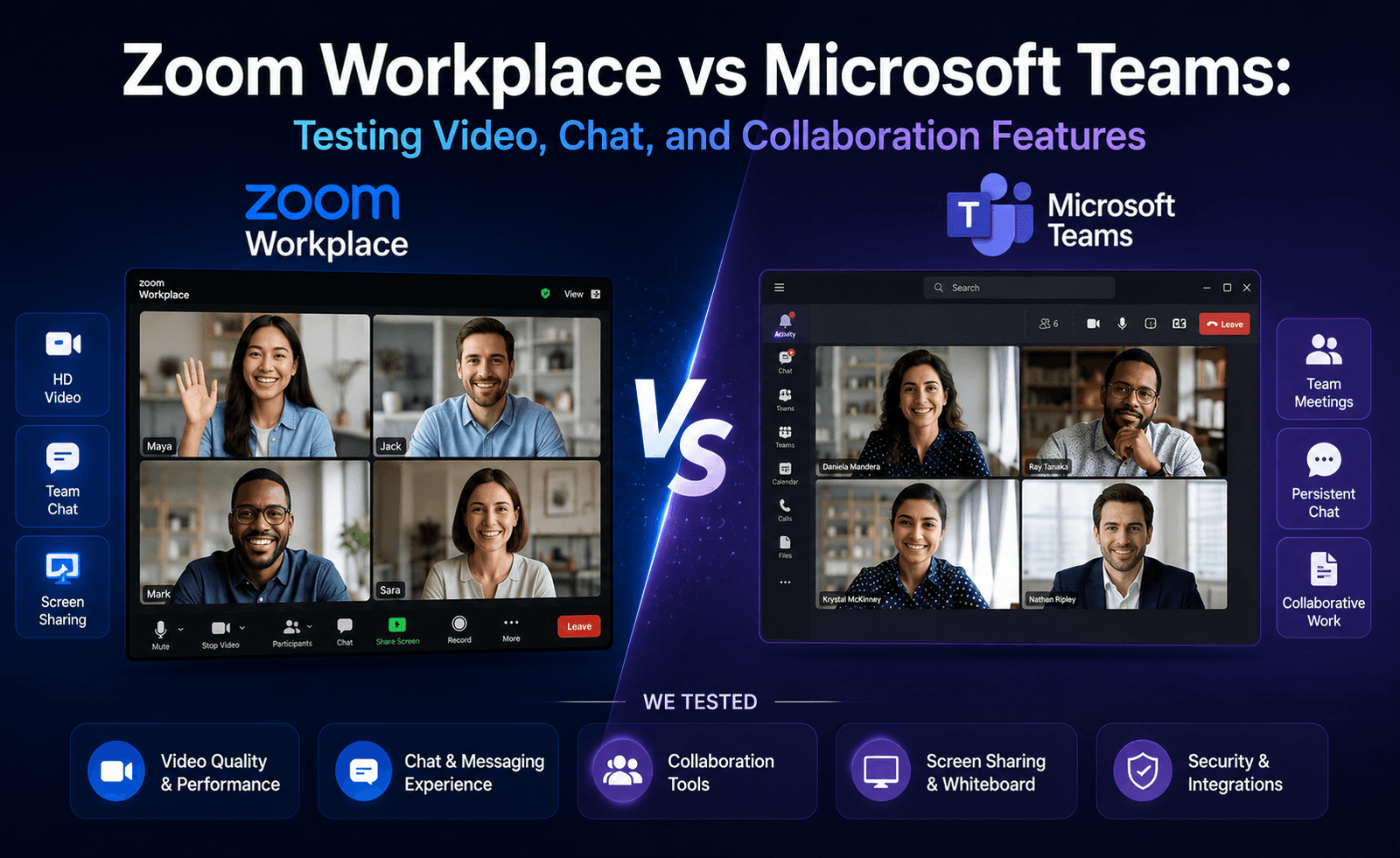
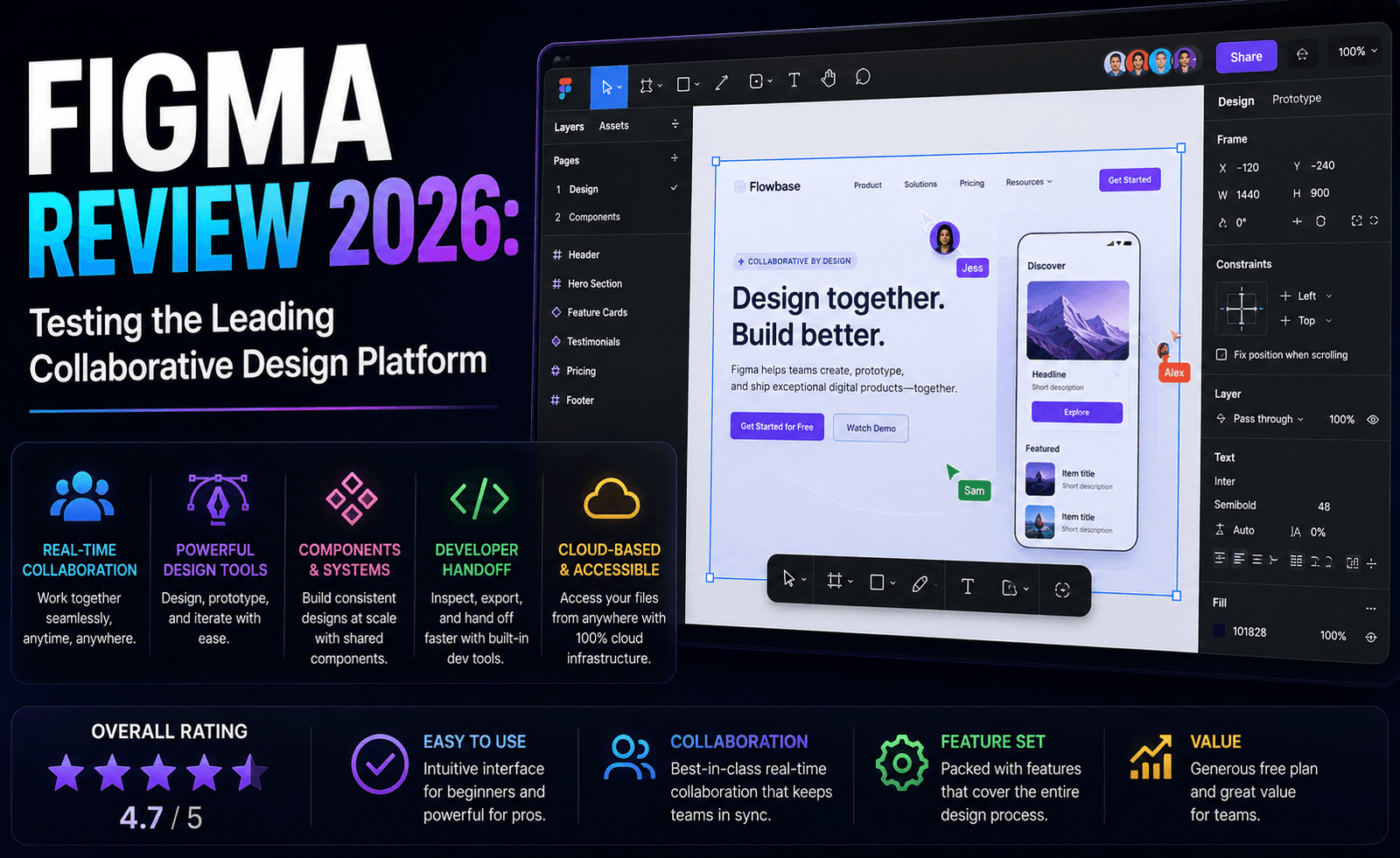
Against Adobe Express, Canva still wins on sheer template volume and brand-kit depth, though Express benefits from tighter Firefly integration for teams already inside the Adobe ecosystem. Against Figma, the two barely overlap in practice: Figma is built for structured, component-based interface design, while Canva is built for fast, template-driven marketing and social content. The most interesting comparison is internal — Canva Pro versus the now-free Affinity suite it owns — and the honest answer is that they are complementary rather than competing: Canva for speed and templates, Affinity for precision and print-grade control, both accessible from the same account.
Final Verdict
Canva Pro earns its subscription cost for exactly the audience it was built for: people who need to produce a high volume of professional-looking marketing and social content quickly, without a design background. The addition of Magic Studio AI tools and the bundled access to a genuinely capable, free Affinity suite make the value proposition stronger in 2026 than it has ever been. Design purists who need pixel-level control or complex print production workflows will still want a dedicated tool for that specific work, but for the broad middle ground of everyday content creation, Canva Pro remains one of the easiest recommendations in this category.
Frequently Asked Questions
Is Canva Pro worth it over the free plan?
If you design regularly, need premium templates or stock assets, or want Background Remover and Brand Kit tools, Pro pays for itself quickly. Occasional users who make the odd graphic a month may find the free plan sufficient.
Does Canva Pro include Affinity’s AI tools?
Yes, Canva Pro and Business subscribers can access premium AI features inside the free Affinity app, drawing from the same monthly credit allowance used elsewhere in Canva.
Can Canva replace Adobe Creative Cloud entirely?
For most everyday marketing, social, and presentation work, yes. For specialized needs like broadcast video finishing or complex prepress production, a dedicated professional tool is still likely necessary.
Is Canva good for print design?
Canva handles straightforward print jobs like flyers and business cards well, and pairing a Canva Pro subscription with the free Affinity Publisher tools covers more advanced, print-grade layout needs.

Leave a Reply